
Is Your Home Ready for HDMI 2.2? What the New Standard Means for Your Entertainment System
No obligation · We aim to respond within one business day
Complimentary phone consultation
Talk it through with a local designer. Written proposal before anyone books a crew.
No obligation · We aim to respond within one business day
You do not need HDMI 2.2 just because you are replacing a cable or buying a PlayStation. For PS5 and PS5 Pro, start with Sony’s supported video modes and your TV’s inputs. Upgrade when a specific source and display need the extra bandwidth. Check the cable-replacement section below before ordering one.
Decide these first
- Sony’s current video-output guide lists HDMI 2.1, not 2.2. A new cable does not add 2.2 modes.
- Ultra96 on a device can mean a maximum of 64, 80 or 96 Gbps. Read the model’s bandwidth.
- Do not buy a display around a future PlayStation. Wait for Sony’s specifications for the console you intend to buy.
- Replace a cable when it is damaged, isolated as the fault, or a higher certified category is required.
- Scan the HDMI certification label and match brand, model and length before you pay.
What is HDMI 2.2, and how does it compare with HDMI 2.1?Link to this section
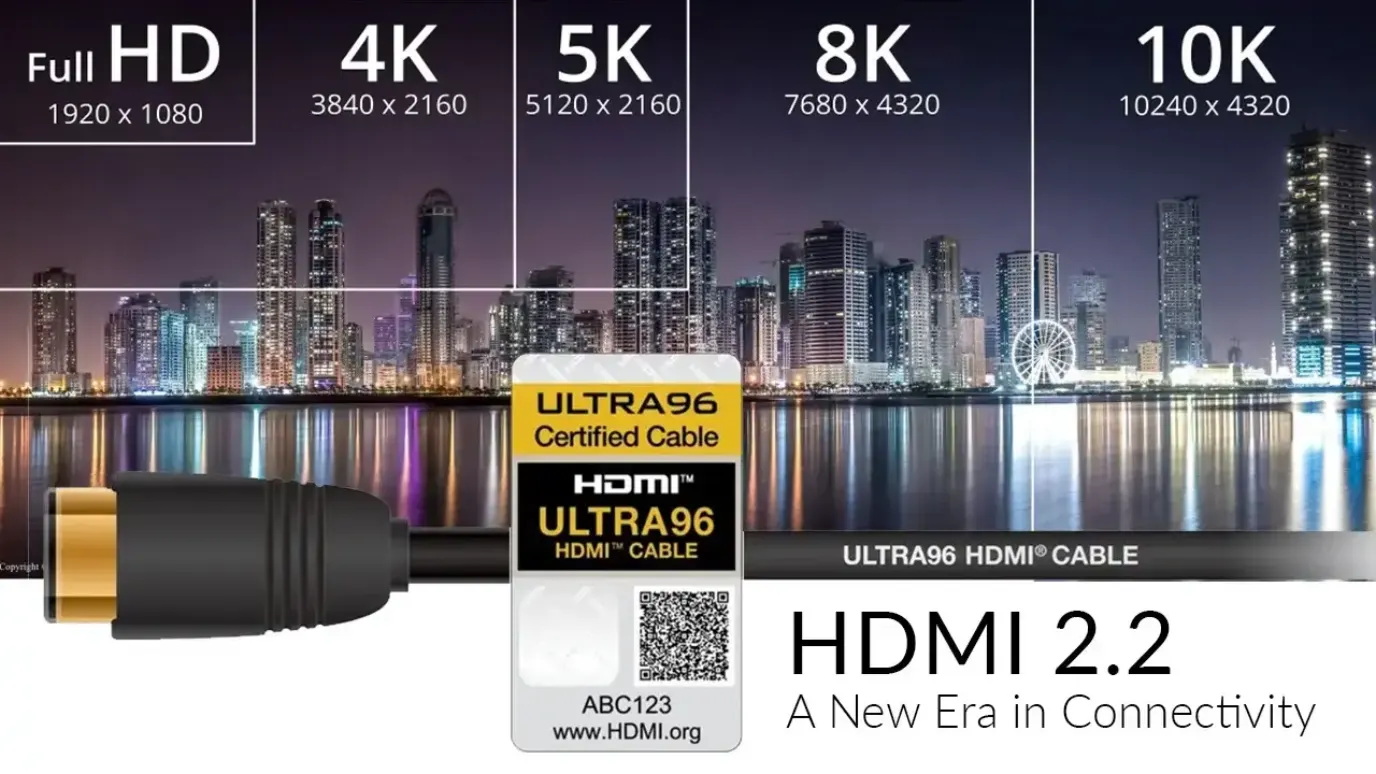
HDMI carries picture and sound between equipment. HDMI 2.2 raises the available bandwidth to 96 Gbps. Bandwidth is the connection’s carrying capacity. It does not tell you how detailed a game looks or how many frames the console can draw.
The useful HDMI 2.1 vs 2.2 comparison is the connection you need for your intended picture format. Ultra High Speed HDMI cables support systems up to 48 Gbps; Ultra96 HDMI cables support up to 96 Gbps. A higher cable rating alone cannot add output modes to a console.
| Connection or feature | Supported value | Buying decision |
|---|---|---|
| Ultra High Speed HDMI cable, introduced with HDMI 2.1 | Up to 48 Gbps | Check that your target signal fits this category before choosing a higher rating. |
| Ultra96 HDMI cable for HDMI 2.2 | Up to 96 Gbps | Check the device’s required cable category alongside its supported input modes. |
| Ultra96 name on a device | 64, 80 or 96 Gbps maximum | Read the model’s actual bandwidth; the name does not promise the highest rate. |
| PS5 video output | HDMI 2.1; supports 4K at 120 Hz | Check the TV port, game support and output settings before buying equipment. |
| HDMI 2.2 supported resolutions | uncompressed 8K@60/4:4:4 and 4K@240/4:4:4 at 10-bit and 12-bit, and up to 12K@120 and 16K@60 | These are the specification’s capabilities. They are not a reason to buy a 16K television. |
Refresh rate is how often the display updates. HDMI 2.2 supports uncompressed 4K at 240 Hz with 4:4:4 chroma and 10-bit or 12-bit color. Chroma describes the signal’s color information; 4:4:4 retains full color detail. That is a standard’s capability, not a promise that a particular TV accepts that signal. Ask for the supported-input table for the exact model and port.
Complimentary phone consultation
Planning a theater or media room?
Tell us the room and how you like to watch. A complimentary phone consultation is the first step — no obligation, and the written proposal is yours to keep.
No obligation · We aim to respond within one business day
What does Sony actually list for PS5 and PS5 Pro?Link to this section
Sony’s current video-output guide lists HDMI 2.1, not 2.2. A new cable does not add 2.2 modes. For PS5 Pro, check the screen requirements for the output mode below.
An Ultra96 cable still connects a PS5; the link stays at the modes Sony lists (HDMI 2.1 / 4K 120 Hz). The specification is backward compatible with earlier versions, and Ultra96 cables can be used with existing HDMI devices.
PS5 Pro’s 8K output requires a screen accepting 8K at 60 Hz with Display Stream Compression, a way to compress the video signal. Sony also disables VRR, variable refresh rate, during that output. VRR lets the display adjust its refresh timing while a game runs. Confirm that trade-off before choosing a TV mainly for the higher resolution.
Use a game you actually play when checking the result. Sony’s 120 Hz output setting requires a TV and game that support that frame rate. A TV’s input capability does not guarantee that every game will use it. For the broader display and content decision, see the guide to higher-resolution TVs and streaming.
Frequently asked questionsLink to this section
Does PS5 support HDMI 2.2?Link to this section
Sony’s video-output guide lists HDMI 2.1 and 4K 120 Hz for PS5 consoles. An Ultra96 cable still connects a PS5, but the link stays at those HDMI 2.1 modes. Use the included cable or an Ultra High Speed cable rated for 4K 120 Hz, and test that output on a game that supports it. A newer cable category does not add 2.2 modes the console does not list.
Should you buy a display for a future PlayStation?Link to this section
Do not treat PS6 HDMI 2.2 support as a confirmed buying requirement. Wait for Sony’s specifications for the console you intend to buy before choosing a TV or receiver around its output. The HDMI standard defines connection capabilities; it cannot establish what a future PlayStation will include.
Compare your current console’s Video Output screen with the proposed TV’s supported-input table. If your present display works and a future console is the only reason to replace it, wait. If you need a display now, compare the picture, supported inputs and features you will use with your current source. Treat any claimed future-console compatibility as something the seller must substantiate for the exact model.
For a room being remodeled, plan access to the cable route instead of assuming a cable will suit every later device. Ask the installer how a replacement would reach the display without disturbing the finished wall. Have the installer mark the access points on your connection sketch before the wall is closed.
When should you replace the HDMI cable?Link to this section
Replace the cable when it is damaged, when testing isolates it as the cause of a fault, or when the connected equipment requires a higher certified cable category. For a longer run, ask the cable manufacturer to confirm the required output mode at your measured length, then test through the final installed route.
For a new purchase, check the HDMI certification label. Scan its QR code and compare the returned brand, model and length with the package. Check the cable name on the jacket too. A seller’s description of a cable as “gaming” does not answer those checks.
Devices using the Ultra96 feature name require an Ultra96 HDMI cable for their maximum bandwidth. Choose that cable when you have such a device and a matching display mode to use. A newer certification alone is not a reason to replace a working cable.
A reachable console-to-TV cable swap is a reasonable DIY job. If the route disappears into the wall, identify it before pulling. For an active cable, which contains powered signal electronics, check its maker’s direction and power instructions. Ask for the proposed cable’s exact model and length on an installation quote, including any adapters or wall connections.
How long can an HDMI 2.2 cable run?Link to this section
HDMI Licensing Administrator’s cable overview certifies cable categories and jacket labels. That overview lists no maximum length in meters. Match the certified category to the installed run, then test the picture mode you actually need.
Use the certification and connection checks above for the exact cable model and installed length.
For a PS5 running 4K at 120 Hz, Sony’s troubleshooting checks call for the included cable or an Ultra High Speed cable rated for that output. Test that mode on a game that supports it before you order a longer specialty cable. A seller’s “gaming” description does not replace the certified category.
Will your TV or receiver need replacing for home theater?Link to this section
Replace a TV or receiver only after identifying the feature that the existing unit cannot pass or display. Make a connection sketch from source to screen, including any receiver or soundbar. Sony’s troubleshooting guide specifically asks whether intermediary equipment is affecting the signal. Test the source directly at the TV to help isolate that part of the route.
For sound that arrives before or after the picture, Latency Indication Protocol, or LIP, helps source devices determine audio/video timing adjustments. It addresses synchronization. It is not a guarantee that replacing a cable fixes a lip-sync fault. Ask the manufacturer which connected devices must support the feature in your intended arrangement.
Before replacing audio equipment, note which source and program produce the delay. Compare that source through the receiver and directly at the TV, then use the equipment manuals to check audio-delay settings. Keep a note of each change so you can restore the original setup. For other sound problems, use the home theater sound troubleshooting guide.
How to tell if a TV already has HDMI 2.2Link to this section
Open the manufacturer’s spec sheet for the exact model and the exact HDMI port. Look for HDMI 2.2 or the Ultra96 feature name, then read the bandwidth tier. HDMI Licensing Administrator encourages Ultra96 on products that support a maximum of 64, 80, or 96 Gbps, so the name alone does not tell you which tier you have.
A 4K 120 Hz badge alone does not establish an HDMI port’s version or supported input modes. Confirm the port’s labeled version and bandwidth before you treat the set as a 2.2 display. If the sheet is silent, ask the seller for that port’s input table in writing.
What should you budget for necessary upgrades?Link to this section
Buy the part that solves the identified limitation. The estimates below are older equipment planning allowances in US dollars, not current retailer offers or a Digitalholics installation quote. Request current prices for named models before setting a budget. The earlier cable estimate was $20-$50 depending on length and quality; cable certification and suitability still need checking.
| Component | Upgrade priority | Factors to consider | Estimated cost range, USD |
|---|---|---|---|
| HDMI Cables | After checking the existing connection | Required cable category and installed route | $20-50 per cable |
| TVs/Displays | When the target input mode is missing | Exact port capabilities and picture needs | $1,000-3,000+ |
| AV Receivers | When testing identifies a pass-through limitation | Required video mode and audio connections | $500-1,500 |
| Source Devices | When the desired content needs a different source | Actual output modes and the content you use | $200-500+ |
Do not add every row to a shopping list. A receiver may stay if a supported alternative connection delivers your required picture and sound. Have the proposal distinguish equipment, cable routing and setup labor so you can compare the scope.
What should you check before hiring someone or buying parts?Link to this section
Use this checklist to describe the fault or desired feature. It gives an installer something testable and can resolve a settings problem without a service visit.
- Write down the source, TV and receiver model names. Photograph the connected input labels and cable jacket.
- State the result you want: a missing game mode, a picture dropout, or sound that does not match speech. Avoid asking only for the newest connector version.
- Check the display manual for the particular input’s supported modes and any setting needed to enable them.
- On PS5, open Settings > Screen and Video > Video Output. Read Current Video Output Signal and Information for the Connected HDMI Device. Compare the result with your intended mode.
- Follow Sony’s direct-to-TV troubleshooting checks for the correct input, current TV firmware and intermediary equipment. Photograph the results before changing more equipment.
- Ask a prospective installer to identify which component limits the target mode and how the proposed replacement resolves it. Request a demonstration through the final installed route before accepting the work.
How should you prepare the room for later upgrades?Link to this section
Keep the equipment list and connection sketch with the room’s paperwork. Mark cable ends and keep the certification packaging. When building or remodeling, ask for an accessible replacement route and room to handle connectors at the equipment locations. Avoid approving a permanently concealed connection until the intended source and display have been tested together.
For room layout, see the home theater design guide. For help with the connection plan, bring the checklist to a complimentary phone consultation with Digitalholics. State what already works and what you want to change.
Plan the required equipment and wiring through our home theater installation service.
SourcesLink to this section
- HDMI Licensing Administrator: current specification overview
- HDMI Licensing Administrator: cable types and certification labels
- HDMI Licensing Administrator: cable categories and certification
- HDMI Licensing Administrator: Ultra96 feature name
- HDMI Licensing Administrator: Latency Indication Protocol
- Sony PlayStation: console resolution and connection guidance
Complimentary phone consultation
Need the signal chain checked?
Bring the TV model, receiver, and cable type you use. A complimentary phone consultation reviews the ports and hops before anyone orders new cables — no obligation.
No obligation · We aim to respond within one business day