
How to Plan a Home Network for 4K and 8K Streaming
No obligation · We aim to respond within one business day
Complimentary phone consultation
Talk it through with a local designer. Written proposal before anyone books a crew.
No obligation · We aim to respond within one business day
A reliable home network for 8K streaming starts with the bitrate of the actual video and the complete path from the internet connection to the screen. It does not start with a router badge. Verify what the service, player, display, Ethernet port, and Wi-Fi client support; then measure performance at the viewing device while the rest of the home is using the network.
The practical answer is usually less dramatic than the marketing. A fixed television or media player is a good candidate for Ethernet. A wireless device needs strong, stable coverage in its room, not merely a high speed beside the router. Wi-Fi 7 can add capacity and flexibility, but it is not a blanket requirement for an 8K display.
How much bandwidth does 4K or 8K video need?Link to this section
Start with the service you actually watch. Netflix says a steady connection of 15 Mbps or higher is required for Ultra HD on a compatible Windows device. Apple recommends a minimum of 25 Mbps for 4K streaming. Those figures are not contradictory; they are service-specific recommendations built around different delivery systems, devices, and encoding choices.
| Source | Published guidance | What it means for planning |
|---|---|---|
| Netflix Ultra HD | 15 Mbps or higher | A requirement for a supported Netflix setup, not a universal number for every service |
| Apple 4K streaming | 25 Mbps minimum | Apple's recommendation for its high-quality video formats |
| YouTube 8K uploads | Variable by frame rate and picture format | Upload encoding guidance is not a viewer download requirement |
| Local 8K file | Use the file's measured bitrate | Allow for peaks, not just the average shown by a media library |
Read the original service guidance before sizing a connection: Netflix Ultra HD connection requirements and Apple's 4K streaming guidance. The range between their recommendations is a useful warning against repeating one universal 4K figure.
For 8K, the source matters even more. YouTube publishes separate recommended bitrates for uploading 8K video at different frame rates and picture formats. Its own page explicitly labels those values as upload recommendations; they are not playback bitrates. A service may transcode that upload into a different stream for the viewer. See YouTube's upload encoding guidance, then use the playback requirement supplied by the service and device you will actually use.
Local playback is a different workload again. A media server sends the file available in your library, sometimes after transcoding it. Inspect the file's average and peak bitrate, confirm whether the server will transcode, and test the client. That evidence is more useful than assuming that every file with the same resolution label consumes the same bandwidth.
Complimentary phone consultation
Curious what lighting, shades, or whole-home control would feel like in your house?
Describe the rooms and the routines you want. A complimentary phone consultation is the first step — no obligation.
No obligation · We aim to respond within one business day
Build a capacity budget for the busy hourLink to this section
One successful speed test does not describe a household. List the streams likely to run at the same time, then include sustained background traffic such as cloud backups, large downloads, camera uploads, video calls, and game updates. The goal is not to force each activity into an arbitrary allowance. The goal is to identify which traffic can overlap and whether the path still has headroom when it does.
Make the budget at two points. First, compare total internet demand with the speed that the provider actually delivers during the busiest viewing period. Second, compare each room's traffic with the capacity and stability of its local link. A fast internet connection can still feed a weak wireless room, and excellent in-home cabling cannot make an undersized or congested provider connection faster.
When a service offers an in-app network check, run it on the television or player rather than on a nearby phone. Repeat the test with the household online. Record the result instead of treating one good run as permanent proof. That gives you a baseline to compare after moving an access point, changing a cable, or adjusting a network setting.
Check the complete network pathLink to this section
A streaming session depends on every link between the source and the picture. Work through the path in order:
- The service must offer the selected title in the desired resolution.
- The account or plan must include that quality where the service makes it conditional.
- The app and player must support the codec, picture format, and output resolution.
- The internet connection must deliver the stream reliably at the time you watch.
- The gateway, router, switch, and access point must carry the traffic without a slower link or avoidable congestion.
- The final Ethernet or Wi-Fi connection must remain stable at the screen.
- The display input and cable must support the signal sent by the player.
A new router cannot add an 8K decoder to a player that lacks one. A faster internet plan cannot repair weak coverage in a media room. An expensive display cable cannot improve a stream that is already buffering before it reaches the player. Treat each layer as a separate question and change the layer that measurements identify.
If you are still choosing the display and source devices, keep those decisions in the separate 8K TV and streaming guide. For a broader system plan, the home theater design guide covers room, display, audio, seating, and control decisions together.
Use Ethernet for fixed streaming devices when possibleLink to this section
A television, media player, game console, or local media server does not move around the home. A wired connection removes signal strength, walls, neighboring radios, and airtime competition from that part of the path. It also makes troubleshooting more decisive: if the same stream succeeds on a known-good cable and struggles on Wi-Fi, the wireless segment deserves attention.
Check the port specification before assuming that wired automatically means the fastest link. Some televisions use a slower Ethernet interface than an external media player. A cable, wall jack, patch panel, switch, and client negotiate one link together, and the slowest or faulty part constrains the result. The useful evidence is the negotiated link and a transfer test, not the category name printed on one component.
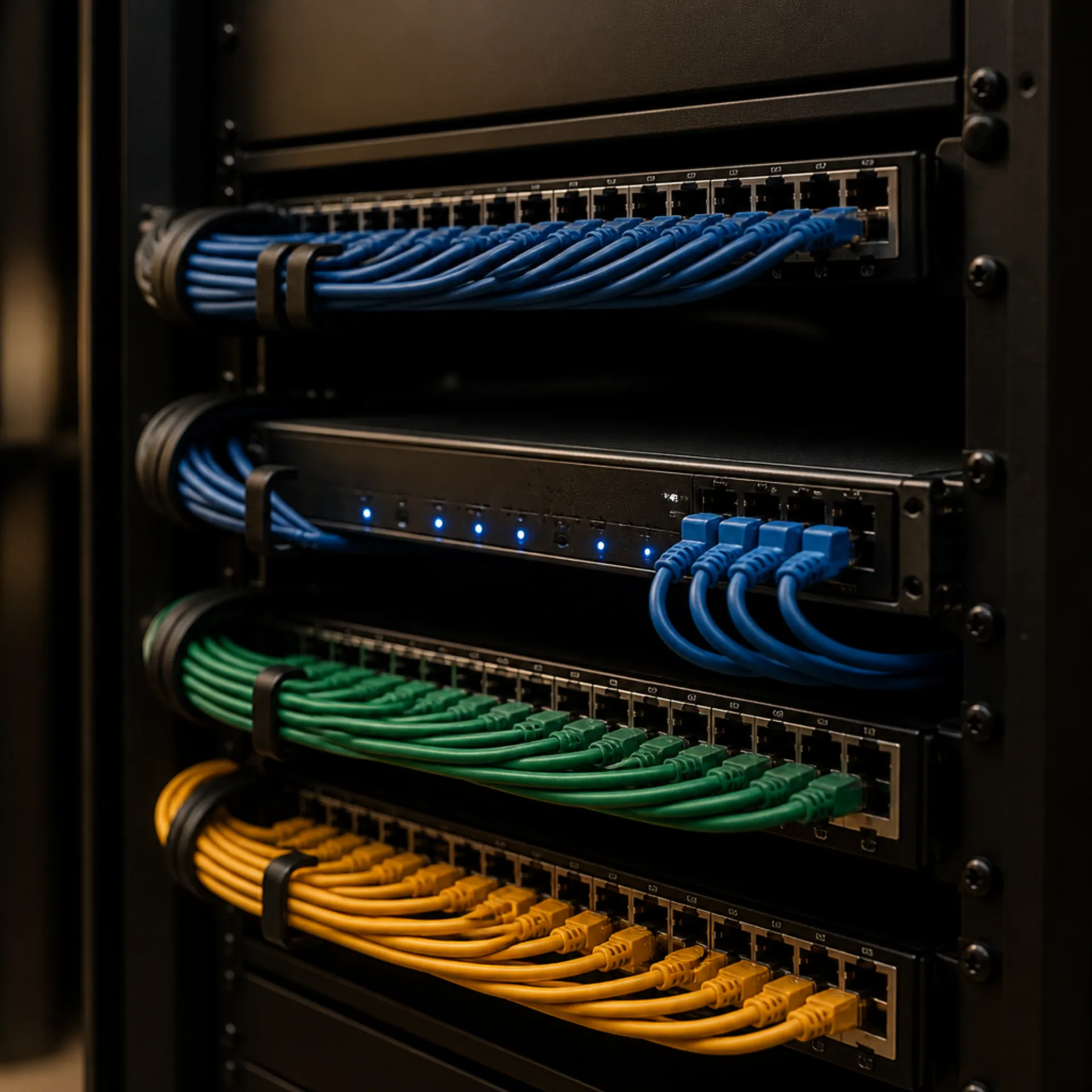
Existing Cat6 that maintains a clean Gigabit link does not need replacement solely because a display is labeled 8K. For a new run, a renovation, or a backbone serving faster access points and local storage, Cat6A provides a different planning envelope. Ethernet Alliance material says 10GBASE-T works for lengths up to 100 meters. Its supported-distance table identifies Category 6A for that full reach and shows why Category 6 performance for the same application depends on channel conditions and distance.
That rating describes cable capacity, not the internet speed your stream needs. A single internet stream does not automatically justify rebuilding a functioning wired network. Cat6A becomes more relevant when the same cabling must serve multi-gig access points, high-speed local transfers, a media server, or a long service life. Review the reach discussion in the Ethernet Alliance 10GBASE-T overview.
For a larger wiring project, Digitalholics can help with network infrastructure design. Homeowners comparing survey, cabling, switching, power, and commissioning scope can also use the smart-home network cost planning guide. Both pages keep the installation decision separate from the playback requirement.
Do you need Wi-Fi 7?Link to this section
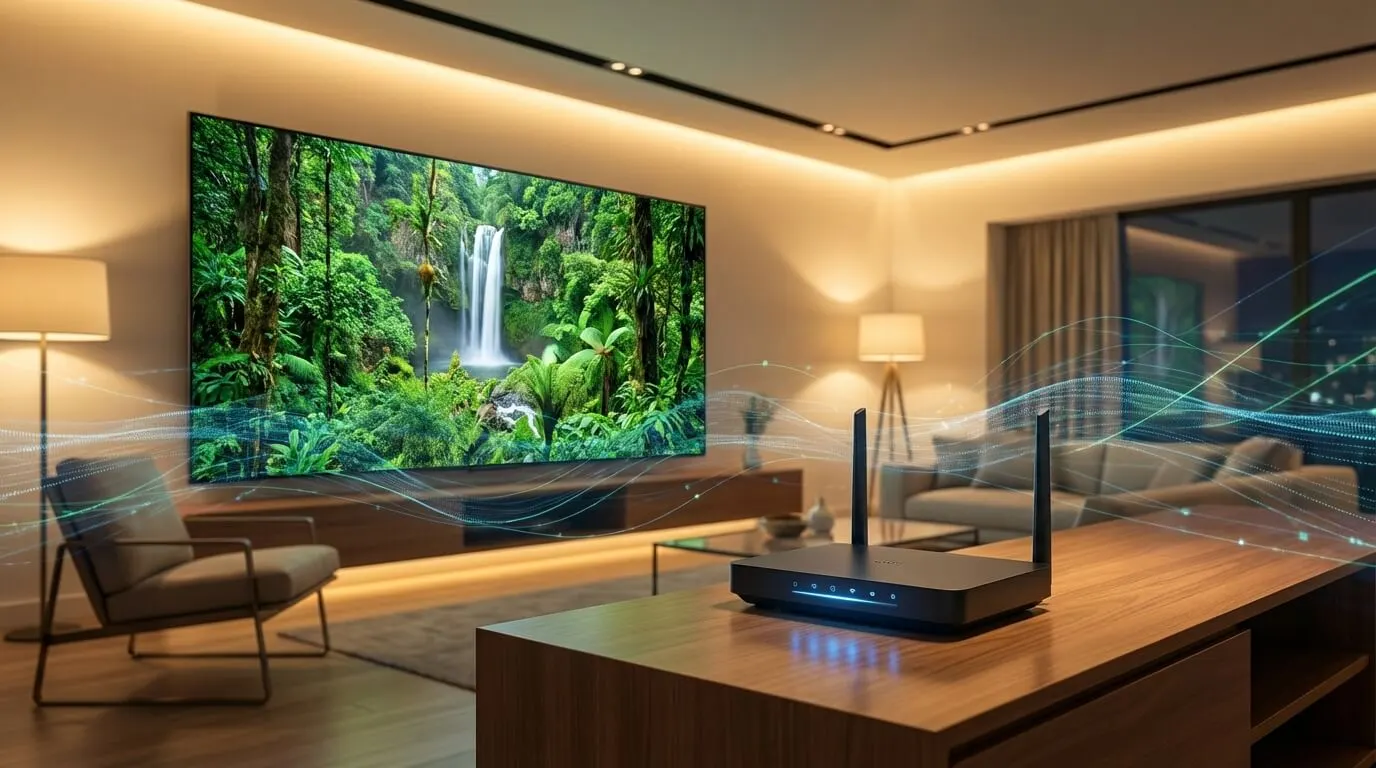
Not automatically. The client inside the television or media player determines which wireless features it can use. Replacing the access point cannot make an older client adopt a newer radio generation. Placement, channel conditions, wired backhaul, and the number of active devices can matter more than the generation name on the box.
Wi-Fi 6E extends compatible Wi-Fi operation into the 6 GHz band. That band can offer cleaner spectrum, but both the access point and client need compatible radios, and higher-frequency coverage may not reach through the same walls as a lower band. Wi-Fi 7 adds wider 320 MHz channels in the 6 GHz band and multi-link operation, which lets a device use more than one band or channel together. Both are capabilities, not a promise that either will be available, appropriate, or interference-free in every room.
What matters for the room: Wi-Fi 6E and the 6 GHz band help only clients with matching radios, and Wi-Fi CERTIFIED 7 channel and multi-link features need strong coverage and a sound backhaul behind them.
Before replacing access points, check what each important streaming client supports. Measure in the room. Look for low signal, channel congestion, poor access-point placement, wireless mesh hops, and an overloaded gateway. If the wireless link is the limit, a nearer wired access point may be a better answer than a newer router in the same distant cabinet.
Use wired backhaul where the floor plan allows itLink to this section
A mesh system can improve coverage, but each node still needs a dependable path back to the network. When nodes use Wi-Fi for that path, client traffic and backhaul may compete for airtime or traverse several radio hops. Wired backhaul gives the node an Ethernet path and leaves its radios focused on nearby clients.
Do not place a node in the dead zone simply because that is where coverage is wanted. A wireless-backhaul node also needs a strong connection to its upstream node. Put it where it can receive a stable signal and still serve the room, or run a cable to the better location. Cabinets, equipment racks, dense masonry, mirrors, metal-backed insulation, and large appliances can all change the result.
For larger homes, a floor plan and a simple room-by-room survey beat a shopping list. Mark the internet entry point, network rack, fixed screens, access-point positions, likely cable routes, and construction materials that block radio energy. The related guide to network infrastructure for AV systems explains why the rack, switching, power, and endpoints should be planned as one system.
HDMI bandwidth is not internet bandwidthLink to this section
HDMI carries the video signal between local devices after the stream has reached and been decoded by the player. Internet and LAN rates describe compressed data moving through a network. HDMI rates describe a display link carrying a different form of the signal. Comparing them as though they are the same requirement leads to oversized internet plans and the wrong troubleshooting steps.
HDMI Licensing states that the Ultra High Speed cable introduced with HDMI 2.1 applies to systems supporting up to 48 Gbps. Its current HDMI 2.2 overview describes the Ultra96 cable for applications up to 96 Gbps. Those are maximum HDMI link capabilities, not minimum home-network speeds for streaming.
Check the output of the player, the input of the television or receiver, the selected picture format, and the cable certification appropriate to that link. Buying the newest cable cannot repair an upstream Wi-Fi problem. Likewise, a stable network cannot make an incompatible display input accept a signal it does not support. Read the official HDMI specification overview and the site's separate HDMI readiness guide for the display-side decision.
Does streaming require a gaming-style latency target?Link to this section
Latency can affect how quickly playback starts, how seeking feels, and how far a live stream sits behind an event, but sustained throughput and stability are usually the first measurements to investigate when a buffered film repeatedly stops.
Interactive traffic is different. Cloud gaming, remote control, and two-way video respond more directly to delay and jitter. A network can show a quick ping while failing to sustain the bitrate of a large stream, or it can carry an on-demand film smoothly while feeling sluggish in a game. Record latency as one diagnostic signal, not as a substitute for testing the actual application.
A practical planning checklistLink to this section
Before buying network equipment, record the fixed televisions, media players, consoles, and local servers; the highest resolution and app each device supports; each client's Ethernet port and Wi-Fi generation; simultaneous streams expected during the busiest hour; sustained background traffic; rooms where signal drops; backhaul available to each access point; switch-port capabilities; and any local files with unusually high bitrates.
Then draw the path for the most demanding screen. Start at the service or server, pass through the gateway and switching, and end at the client and display. Note which links are wired, which are wireless, and where a format conversion or transcode occurs. This turns a vague “future-proof” purchase into a testable design.
Leave room for change without assuming every premium specification is necessary today. Conduit, accessible cable paths, spare rack space, documented labels, and well-placed access points often preserve more flexibility than buying the fastest available router while leaving the physical layout untouched.
How to diagnose buffering before upgradingLink to this section
Replay the same title on the same service so the test is comparable. Use the app's network check if it has one, then test at the television or player. Check the negotiated wired or wireless link, compare a temporary known-good Ethernet connection with the normal Wi-Fi path, and repeat the test during the household's busiest period.
Next, pause large downloads and backups, inspect access-point or mesh backhaul, and confirm that the player, app, gateway, and network equipment are on stable firmware. If local files are involved, compare direct play with transcoding and watch the server's resource use. Change one variable at a time and keep the result.
This sequence separates provider capacity from coverage, cabling, ports, radio congestion, server performance, and device compatibility. Upgrade the internet plan or network equipment only after locating the limiting link. Otherwise, a new component can leave the original fault untouched.
Frequently asked questionsLink to this section
Does 8K streaming require fiber internet?Link to this section
Not by definition. The connection must deliver the bitrate required by the actual service or file at the viewing device. Fiber can provide substantial capacity, but the access technology alone does not prove that the player receives a stable stream.
Is Wi-Fi 7 required for an 8K television?Link to this section
No. The stream's bitrate and the television or player's supported network interfaces determine what is needed. Wi-Fi 7 may help a busy wireless network when compatible clients can use its features, but strong coverage and a sound backhaul remain essential.
Is Ethernet always faster than the television's Wi-Fi?Link to this section
Not always. Check the port specification and negotiated link. A television may have a slower wired port than its wireless radio, while an external player may differ. Ethernet is still valuable for stability and for removing radio conditions from the path.
Will a low ping stop video buffering?Link to this section
Not by itself. On-demand players buffer video and adapt to available bandwidth. A connection can have low latency and still interrupt playback if sustained throughput or stability falls below what the selected stream needs.
Plan the network around the rooms that use itLink to this section
The right upgrade fixes a limiting link you can measure. Start with the source, verify the device, test the final connection, and then decide whether the answer is better coverage, a cable run, a switch change, a different player, or more provider capacity. That order protects useful equipment from being replaced on guesswork.
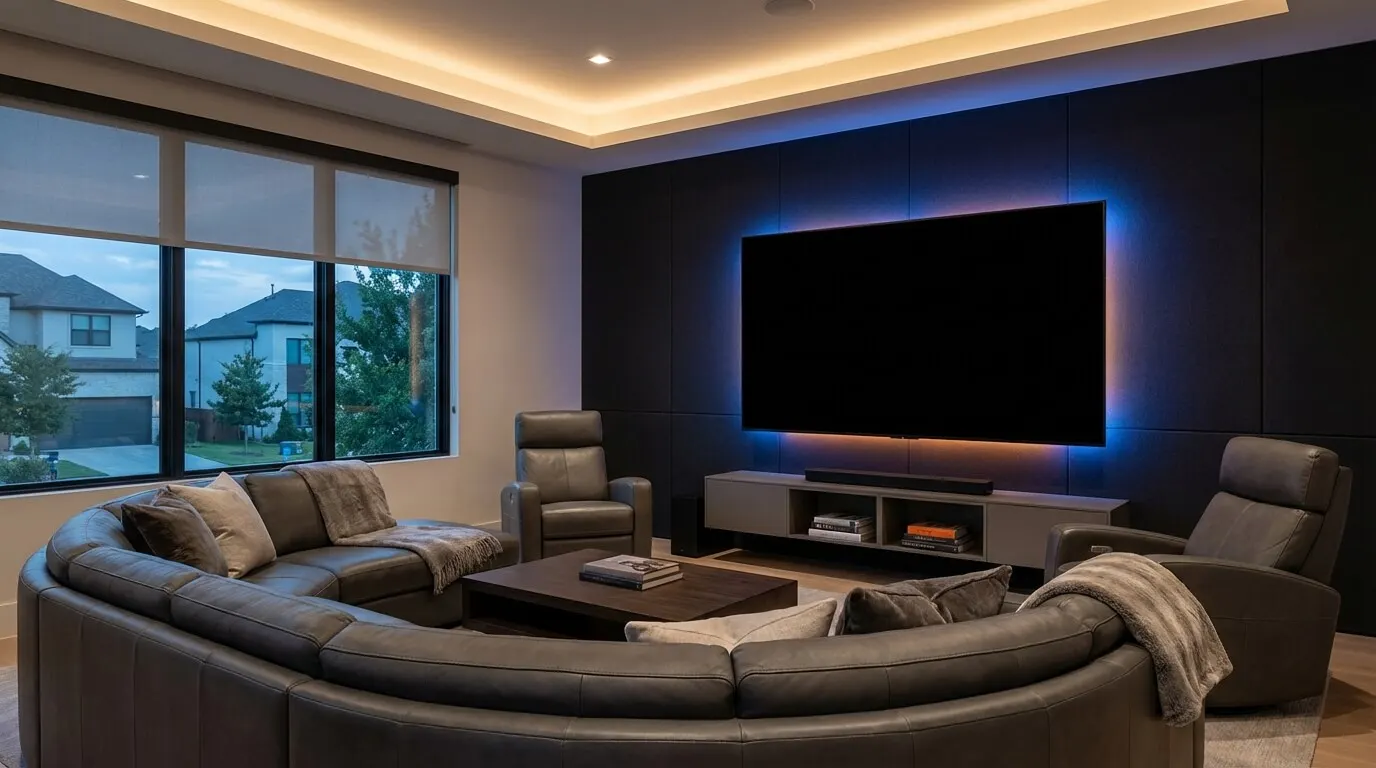
If the network is part of a broader media-room project, review Digitalholics' home theater design and installation options. A useful consultation begins with the devices, room layout, cable routes, service requirements, and test results rather than a predetermined equipment list.
Complimentary phone consultation
Ready to see how it would work in your home?
Start with a complimentary phone consultation. We map the rooms, the scenes you would actually use, and what integrates with what — then a written, line-item proposal before anything is scheduled.
No obligation · We aim to respond within one business day